
If you run a WordPress site without a full SOC, the highest-leverage defense is locking down admin access and privileged workflows fast and deliberately. This playbook is a pragmatic, checklist-driven guide: prioritize actions that contain damage, preserve evidence, and get you back to a minimum viable admin posture.
- Why focus on admin access first?
- How do you lock down admin sessions quickly after a suspected compromise?
- Initial containment sprint (first 60–120 minutes)
- Hardening checklist: configuration and access controls
- Comparison table: speed vs. impact — what to apply first
- Integrity checks and remediation
- Actionable checklist: step-by-step containment and recovery
- Incident mini-case study: admin compromise at a regional membership site
- Operational integrations and documentation
- Final notes: what to rehearse and measure
- Related operator resources
Why focus on admin access first?
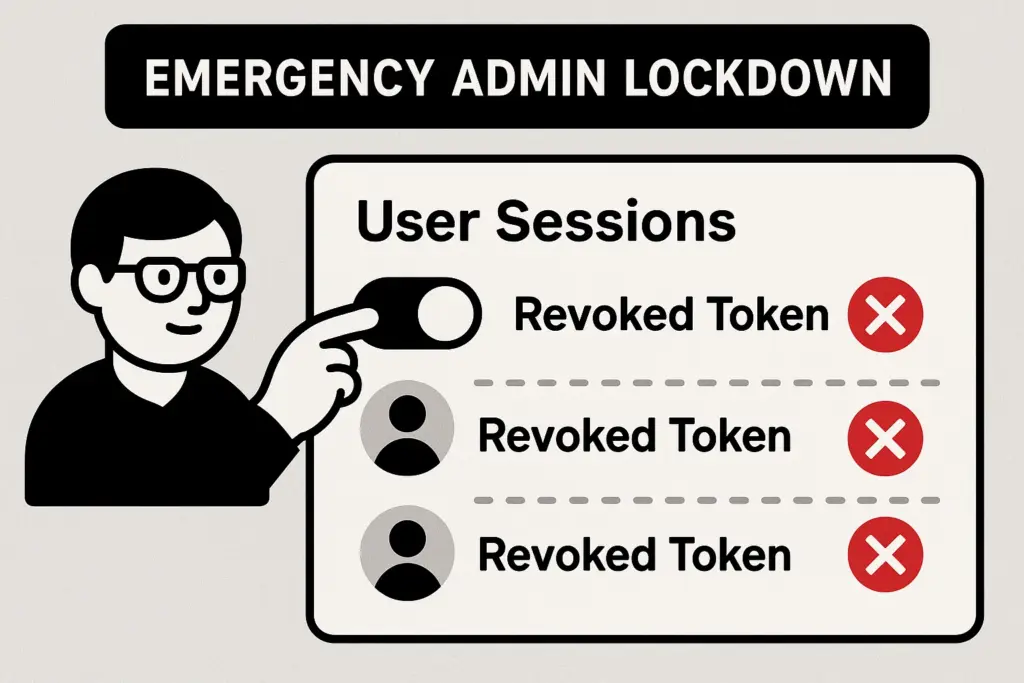
Admin toggling off active sessions to force logout
Admin accounts and privileged workflows are the pivot point attackers use to persist, install backdoors, and modify content. Containing admin access limits an intruder’s reach and gives you time to investigate without new surprises. The rest of this playbook assumes containment is your immediate priority.
How do you lock down admin sessions quickly after a suspected compromise?
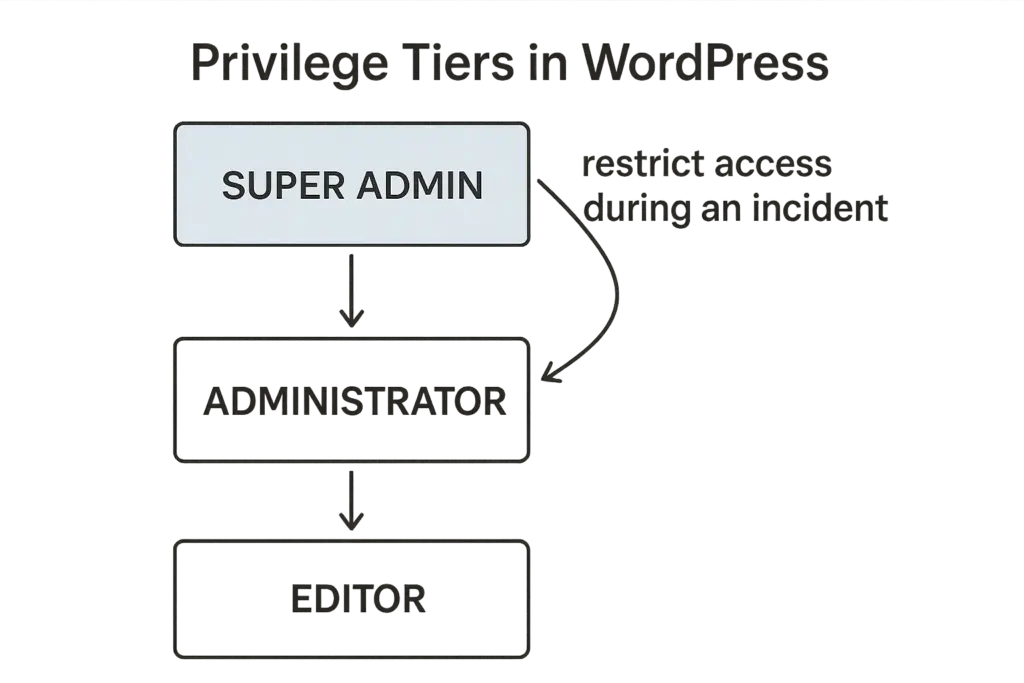
Privilege tier diagram for WordPress admin roles
Force immediate logouts, rotate credentials, and require MFA re-enrollment for all elevated accounts; these steps stop active sessions and block many automated follow-on actions while you assess. Execute them in that order so you don’t re-enable access before credentials and tokens are replaced.
Initial containment sprint (first 60–120 minutes)
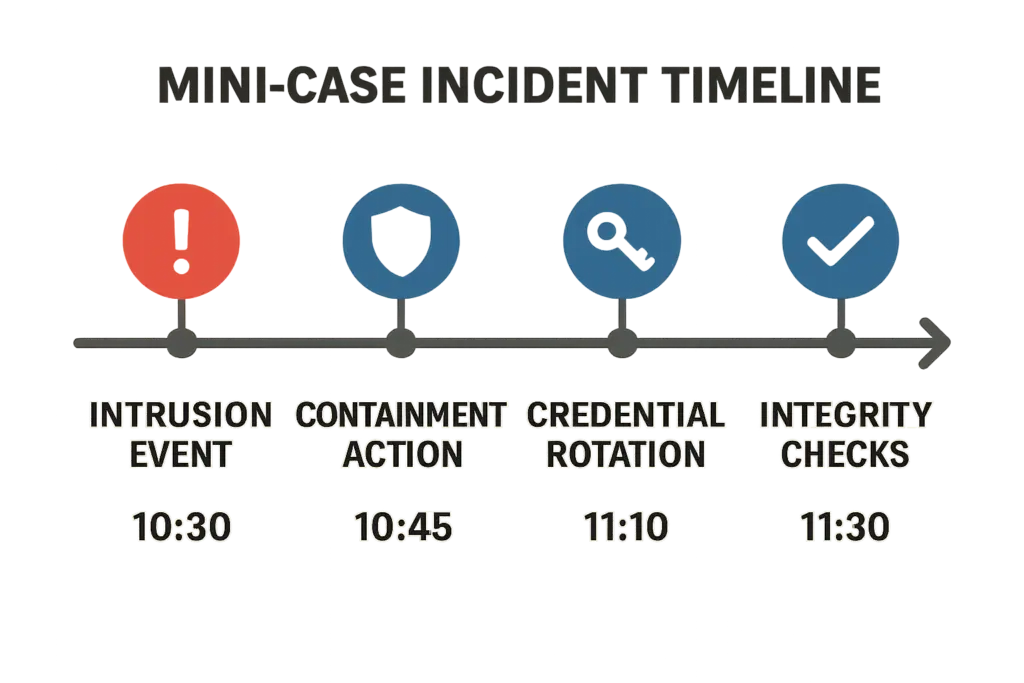
Incident timeline with containment and recovery steps
Move fast. Treat the first two hours as a sprint: contain, preserve, and stabilize. Use the short checklist below and record timestamps and operator names for every step so you have an audit trail.
Step A — Force session and token revocation
Terminate existing sessions for every user with an elevated role. If you have a management tool or host control panel that can invalidate sessions and JWT tokens, use it now. If not, rotate authentication keys in user profiles and change salts in wp-config.php after backing it up.
Implementation tips:
- Use WP-CLI when available: list admins (
wp user list --role=administrator --format=csv) and force password resets (wp user update 2 --user_pass="NewRandomPassword123!") for specific users. - Invalidate cookies by replacing auth salts in
wp-config.php. Always back up the file first. New salts force all users to re-authenticate. - Revoke application passwords and API tokens from user profiles or via WP-CLI:
wp user meta delete <user_id> application_passwords(verify your WordPress version/platform supports this command in your environment).
Step B — Emergency credential rotation
Reset passwords for admin-level users and any system accounts (FTP, SSH, API keys). Do not allow password reuse; use long random strings. Where possible, rotate OAuth tokens and third-party credentials that can trigger remote actions.
Implementation checklist:
- Rotate credentials in this order: admin users, system accounts (SSH/FTP/SFTP), database user, hosting control panel, CI/CD tokens, payment gateway keys.
- Use a password manager to generate and share new secrets securely with operators. Avoid sending passwords over email or chat logs.
- Snapshot and export current credentials and configuration before rotating if you need traceability (store snapshots in a secure off-site location).
Step C — Enforce multi-factor authentication
Require MFA for all admin and editor accounts. If you cannot clear-migrate everyone immediately, require MFA for any session elevated to make code or plugin changes.
Practical steps:
- Enable an MFA plugin that supports mandatory enforcement for selected roles. If you have centralized SSO, require MFA at that layer.
- For emergency operations, whitelist a small set of operators who can re-enroll other admins after verification.
- Log all MFA enrollment and recovery requests; treat recovery actions as high-risk and require manual verification.
Hardening checklist: configuration and access controls
This is the tactical checklist to apply after your containment sprint. Each item reduces attack surface and hardens privileged workflows.
- Review and remove unnecessary admin accounts; convert unused admins to lower roles.
- Enable MFA and set a policy for mandatory MFA for elevation actions.
- Limit admin access by IP where feasible for management interfaces.
- Restrict plugin/theme editor and disable file editing via the dashboard by defining
DISALLOW_FILE_EDITinwp-config.php. - Lock down REST and XML-RPC access unless required, and monitor for abnormal POST requests.
- Use role scoping: give accounts only the capabilities they need for daily tasks.
- Enable logging and remote log export; preserve logs offsite for forensic review.
Example: restrict wp-admin access by IP
Apache (.htaccess) snippet to restrict access to an internal IP range (replace with your IPs):
# Allow specific IPs to wp-admin


    Require ip 203.0.113.0/24
    Require ip 198.51.100.42
Nginx example (inside server block):
location /wp-admin/ {
  allow 203.0.113.0/24;
  allow 198.51.100.42;
  deny all;
}
Why preserve logs offsite?
Local logs are often targeted by attackers. Exporting logs to a separate system or storage service preserves evidence and helps reconstruct attacker actions without risk of tampering. Preserve web server access logs, PHP-FPM logs, database access logs, and any application-level logs (debug.log, plugin logs).
Comparison table: speed vs. impact — what to apply first
| Control | Time to implement | User impact | When to prioritize |
|---|---|---|---|
| Force logout & token revocation | 5–15 minutes | High short-term; users must re-authenticate | Immediate containment |
| Emergency password rotation | 15–45 minutes | Moderate; admin workflow interruption | Immediate, after session revocation |
| Enable/enforce MFA | 30–120 minutes | Medium; enrollment step required | High priority if compromise is credential-based |
| Restrict admin by IP | 10–30 minutes | High for remote teams; may block legitimate admins | Good short-term containment for static teams |
| Disable file editing in dashboard | 5 minutes | Low | Always implement during recovery |
Practical takeaway: start with session revocation and credential rotation, then raise the bar with MFA and limited access rules. Save file permission changes and integrity checks for the stabilization phase.
Integrity checks and remediation
Once access is contained, validate integrity before restoring normal operations.
File and database integrity
Compare core files to a clean WordPress release and scan uploads for binaries or PHP files disguised as images. Replace modified core files and review wp-config.php for unexpected constants or connections.
Action steps:
- Run a checksum or git diff against a verified clean release for
wp-adminandwp-includes. - Scan
wp-content/uploadsfor executable files (common indicators:.php, strange file names, double extensions likeimage.jpg.php). - Dump the database schema and look for unexpected admin users or suspicious options injected into
wp_options.
Plugin & theme audit
Disable and test plugins selectively. Reinstall plugins from verified sources when you have assurance the environment is clean. For sensitive periods, avoid in-dashboard updates unless you can validate sources and signatures.
Checklist:
- List installed plugins and themes; prioritize by risk (plugins with execution capability, file editors, custom code plugins).
- Remove orphaned or abandoned plugins; replace them with actively maintained alternatives.
- When reinstalling, verify plugin ZIPs or download directly from trusted sources and check checksums where provided.
Credential and external service rotation
Rotate API keys and service account credentials used by payment gateways, CDN, analytics, or CI/CD pipelines. Treat any credential that could alter site content or code as compromised until proven otherwise.
Actionable checklist: step-by-step containment and recovery
Do these in the order shown. Track timestamps and operator names for each action.
- Force logout for all admin/editor accounts and revoke persistent tokens.
- Rotate admin and system account passwords; rotate salts and any exposed keys.
- Enforce MFA and require re-enrollment for elevated roles.
- Export logs and snapshot the site; preserve backups off-system.
- Disable in-dashboard file editing and lock plugin installs temporarily.
- Run file integrity checks; restore core files from a verified source.
- Rotate third-party credentials and reissue webhooks and API keys.
- Reinstate least-privilege roles and document post-incident actions.
Operator assignment template (quick)
- Operator A — Session revocation & password rotation (0–30 min)
- Operator B — Export logs & snapshot site (0–60 min)
- Operator C — MFA enforcement & communications (30–90 min)
- Operator D — Integrity scans & plugin validation (60–240 min)
Incident mini-case study: admin compromise at a regional membership site
Situation: A membership site owner noticed unauthorized posts and a new admin account during a holiday weekend. There was no SOC; response was by the site owner and contractor.
Containment actions taken: they forced logouts, reset all admin passwords, and rotated API keys for payment and mailing services. They required MFA for the remaining admin account, disabled dashboard file editing, and exported server logs to cloud storage. Using the exported logs, they traced the breach to a reused password on an admin account that matched a leaked credential elsewhere. After restoring core files from a clean backup and reissuing external keys, they reinstated a single admin account with unique credentials and scheduled a follow-up security review.
Outcome: The site was back online with limited admin access within 6 hours and recovered fully after a controlled plugin reinstallation and integrity verification over the next 48 hours.
Operational integrations and documentation
Make these hardening controls repeatable by documenting exact steps and scripts. Store playbooks and checklists in a central location and run tabletop exercises at least twice a year. For settings and features mapped to automated enforcement, consult product documentation and operational guides on the product pages.
For deeper operator roadmaps and guidance on containing malware and web shells, see the Operational Roadmap: Harden WordPress and Contain Malware & Web Shells and the layered defense guidance at Layered Defense for WordPress. For productized enforcement and enterprise workflows, review ProSecure and Pro offerings, or compare plans on the products page.
If you need incident-focused hardening during plugin disclosure windows or tight timeframes, the Reduce Plugin Exploit Risk During Disclosure Windows: Incident-Focused Hardening Roadmap walks through prioritized mitigations.
Final notes: what to rehearse and measure
Rehearse the containment sprint so each operator knows their role: who forces logouts, who rotates credentials, and who exports logs. Measure time-to-containment and time-to-restore as primary metrics. Keep a short incident playbook linked from your admin dashboard so you can act without reaching for guidance in the middle of an incident.
Related operator resources
Further reading and operator blueprints: Operational Roadmap: Harden WordPress and Contain Malware & Web Shells, Reduce Plugin Exploit Risk During Disclosure Windows, and From Noise to Action: An Operator’s Blueprint to Turn WordPress Telemetry into Fixes. Other useful reads cover brute-force and credential stuffing defenses and incident walkthroughs: Why Other Plugins Aren’t Enough and Incident Walkthrough: Locking Down Admin Access.
Keep this playbook saved, printed, and available to anyone who can perform emergency actions on your site. Fast, deliberate containment protects your users and gives you the time to fix the root cause.