

If you run a WordPress site without a full SOC team, the admin dashboard is both your battleground and your best defense. This playbook-style teardown focuses on the mistakes I see most often with admin access and privileged workflows — why they fail, how to fix them, and what to do when the worst happens. Think of this as a mentor walking you through corrective actions you can actually implement this week. The emphasis is on admin access hardening: practical, repeatable steps that reduce risk quickly without requiring major tooling.
Why admin access and privileged workflows matter more than you think
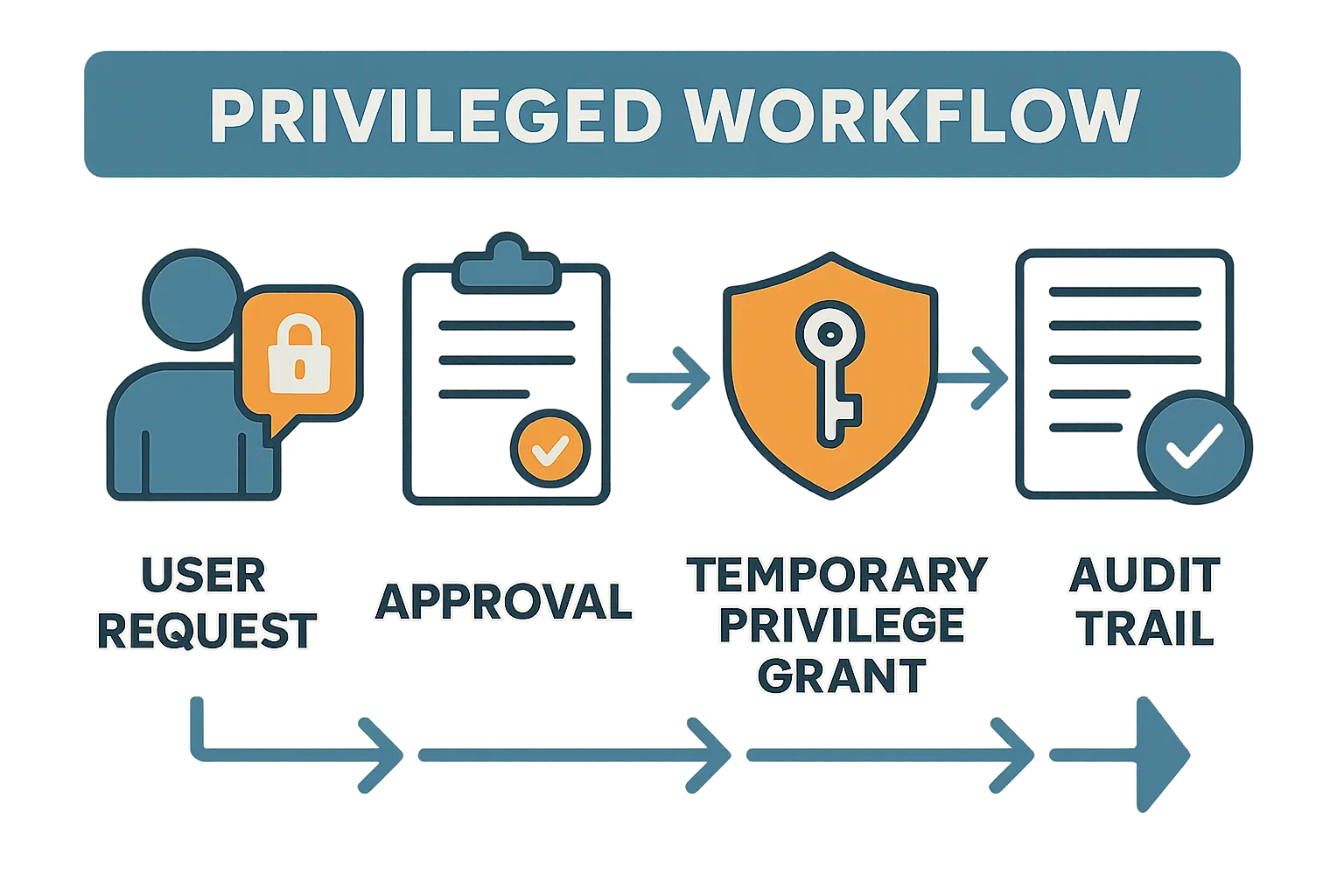
Infographic showing privileged workflow with temporary privilege grants and audit trail
Attackers don’t always need a zero-day exploit. They look for the easiest path to persistent control: shared accounts, never-rotated credentials, and bright-line weaknesses in how admin tasks are requested and approved. When privileged workflows are informal or manual, every human shortcut becomes an attack surface.
Common attacker patterns that exploit weak admin controls include credential stuffing, phishing to capture admin MFA tokens, brute-force logins, exploitation of excessively-permissioned accounts to install backdoors (web shells), and lateral movement once an admin user is compromised. Admin access hardening is the practice of closing those doors with layered controls: identity hygiene, strong authentication, auditable elevation, and fast revocation.
Top mistakes to avoid (and the corrective action for each)
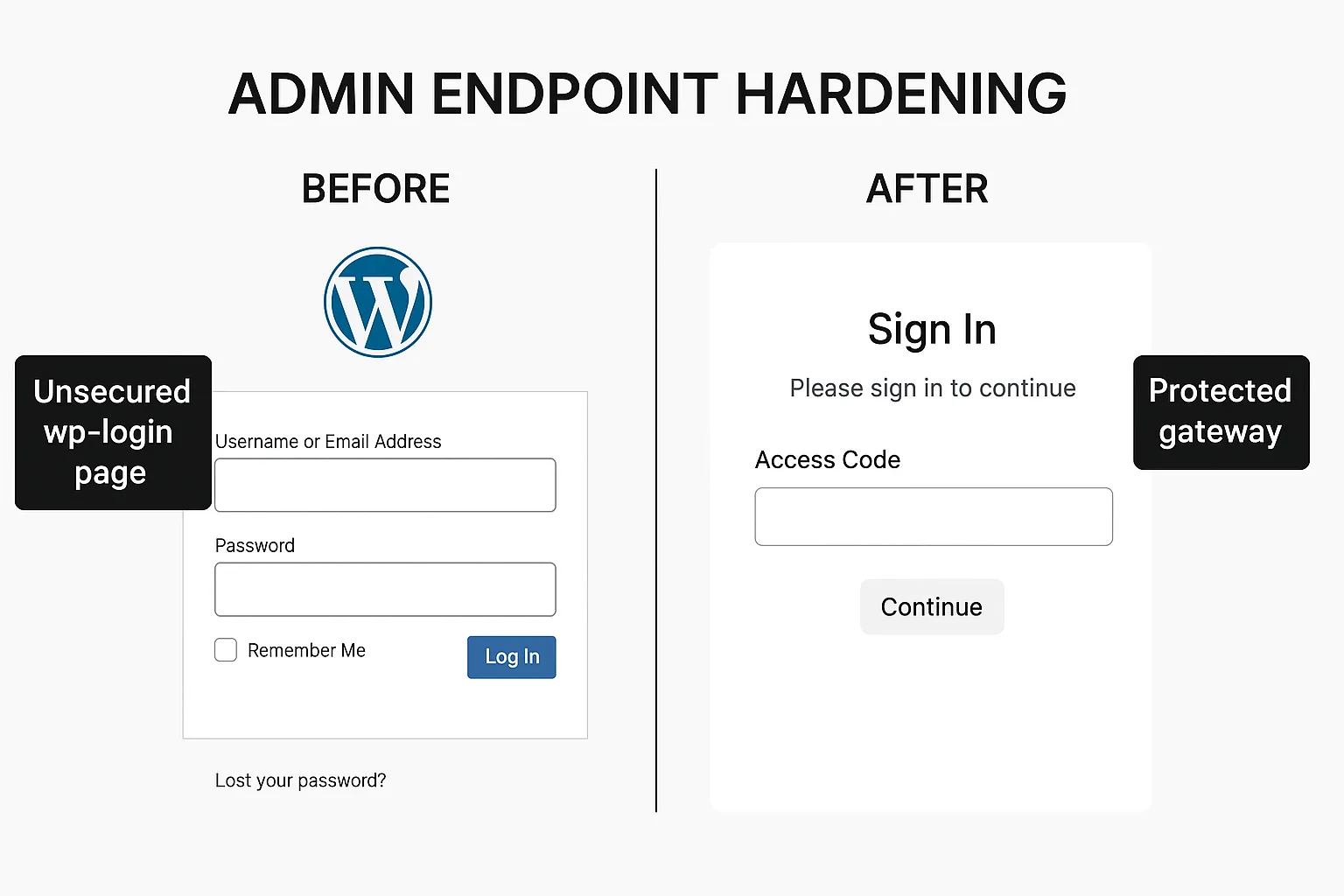
Split-screen diagram showing unsecured login vs hardened admin endpoint
Mistake: Shared admin accounts and blanket credentials
What happens: Teams share a single admin login or leave credentials in documents. When someone leaves or a device is compromised, you have no clear revocation path.
Corrective action: Assign unique accounts for every admin and contributor. Implement role-based access with the narrowest permissions needed to complete tasks. Where temporary elevation is required, use time-limited access and document approvals in your workflow.
Implementation steps:
- Inventory: Export a current user list and flag any shared usernames or generic accounts (e.g., “admin”, “owner”).
- Replace: Create unique accounts for each person and migrate actions to the new accounts; disable or delete generic accounts.
- Document: Record account owners, purpose, creation date, and last activity in a simple spreadsheet or ticketing system.
- Enforce: Add a policy that no shared credentials are permitted; require SSO or unique credentials for contractors.
Mistake: Overprivileged roles for routine tasks
What happens: Editors or contractors get full administrator or editor rights because it’s faster. That broad permission becomes a multiplier during an incident.
Corrective action: Create task-specific roles or use custom capabilities that permit only the required actions (for example: publish, edit own posts, manage comments). Keep a log of role changes and audit them monthly.
Checklist to implement:
- Map tasks to capabilities: list routine tasks (e.g., product updates, content publishing, plugin installations) and the capabilities required for each.
- Create roles: use a role manager plugin or functions.php to create narrowly-scoped roles like “Product Editor” or “Content Publisher”.
- Audit: run a monthly review of administrator and editor-role memberships; remove privileges not required.
Mistake: No multi-factor requirement for high-risk accounts
What happens: Admins use only passwords. Credential stuffing and leaked passwords become direct site takeover paths.
Corrective action: Enforce multi-factor authentication (MFA) for any account with elevated permissions. If you can, require MFA for all logins to the admin area, and ensure recovery processes are strict (no single-person resets without approval).
Practical MFA rollout steps:
- Pick a plugin or SSO provider that supports TOTP and hardware keys for WordPress.
- Mandate MFA for all Administrators first; give a 48–72 hour onboarding window to enroll.
- Implement backup codes and a documented recovery flow: require two approvers to reset MFA for an admin account.
- Log and alert when recovery actions are taken so they can be reviewed.
Tactical fixes and hardened workflows
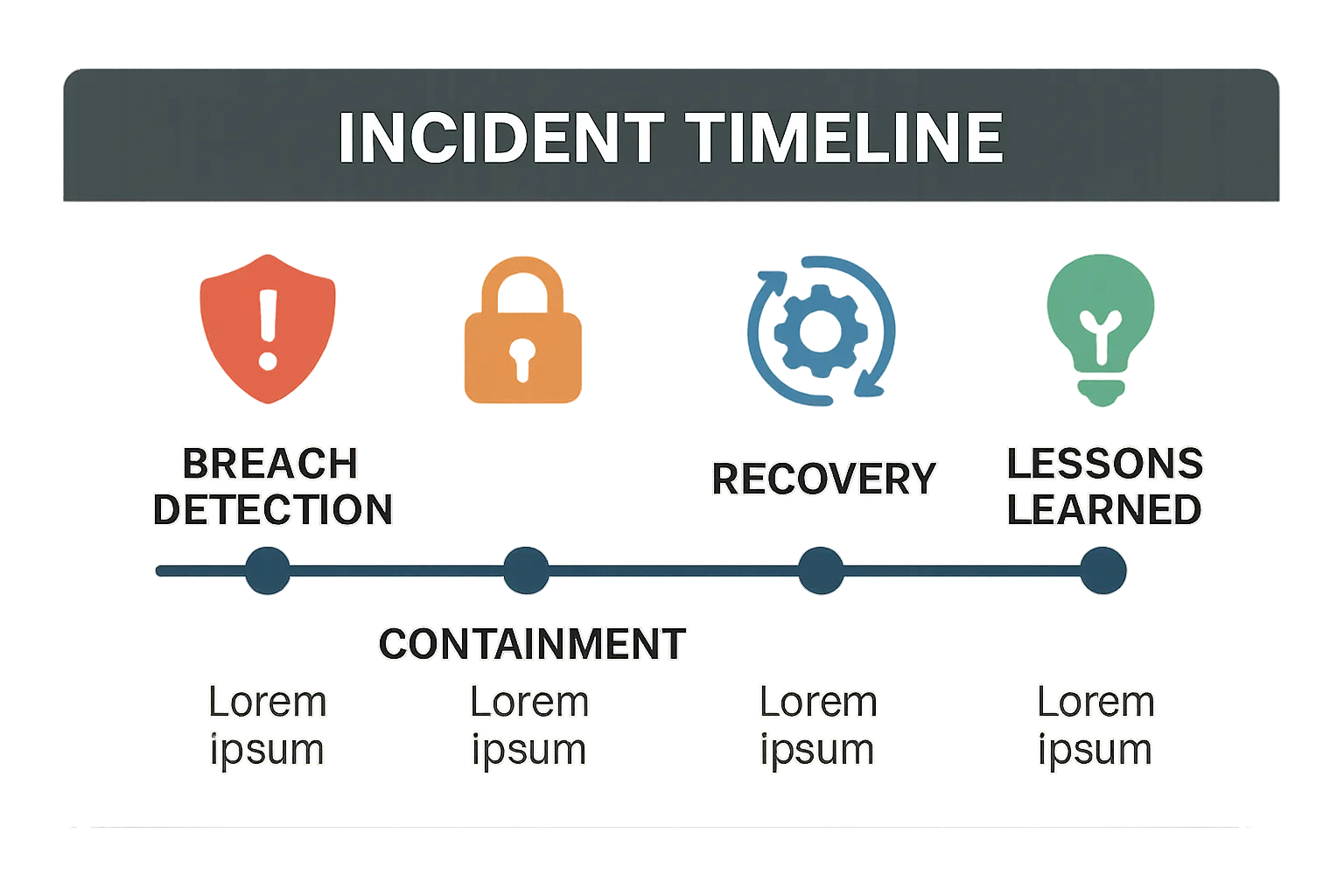
Timeline graphic of a WordPress admin access incident from detection to recovery
These controls focus on procedures you can implement without enterprise tooling — and the workflows you should document to keep privileged access tidy.
Enforce least privilege and document changes
Action: Map every user to specific job functions and set capabilities accordingly. When someone needs temporary elevation, require a written approval (email or ticket) and a scheduled revocation. Maintain a simple spreadsheet or your ticketing system record as the single source of truth.
Example temporary elevation workflow (simple):
- Request: User opens a ticket describing the task and duration.
- Approval: A manager or security owner approves via ticket comment.
- Elevation: Admin grants the minimum credentials and sets a calendar reminder to revoke.
- Revocation: Admin removes elevated rights and documents the action in the ticket.
Harden admin endpoints and session handling
Action: Limit admin-area access by IP when possible, protect login pages with additional verification layers, and invalidate sessions on password changes. Monitor simultaneous sessions for the same account and require re-authentication for sensitive actions (plugin installs, user management).
Implementation checklist:
- Restrict wp-login.php or /wp-admin to known IP ranges (where feasible).
- Add a gateway page or HTTP-auth for the admin folder as an extra layer.
- Force session invalidation on password changes and periodically expire sessions after inactivity (e.g., 24–72 hours for admins).
- Require re-authentication for plugin/theme installs or user creation.
Privileged session logging and retention
Action: Record who elevated privileges, when, and why. Keep logs in a tamper-resistant place and review elevation events weekly. Integrate a simple alert for unusual patterns — for example, an admin account performing bulk plugin installs outside business hours.
Logging and alert examples:
- Store logs offsite or on a separate logging service to prevent tampering during an incident.
- Retain admin-change logs for at least 90 days; longer for regulated environments.
- Create alerts for: new admin accounts, role changes, login failures exceeding a threshold, and plugin/theme installs.
Practical comparison: Lightweight controls vs. heavier process controls
| Control | Lightweight (Good for small teams) | Process-heavy (Better for growth) | Practical takeaway |
|---|---|---|---|
| Account uniqueness | Unique logins + spreadsheet of access | Identity provider + SSO and automated deprovisioning | Start unique now; plan SSO when hiring or using many contractors |
| Privilege elevation | Email approval + time-limited password change | Ticketed approval + automated temporary tokens | Use documented approvals immediately; automate when possible |
| Endpoint protection | IP restrictions and MFA for admins | Zero-trust gateway and session isolation | MFA + IP limits stop the majority of opportunistic attacks |
| Monitoring | Weekly log reviews + simple alerts | SIEM + daily incident triage | Start with alerts that matter; escalate to SIEM as you scale |
Incident mini-case study: One site, one missed step, one day of recovery
What happened: A small e-commerce site used the same admin password across two contractors. One contractor’s credentials were leaked from an unrelated breach, and credential stuffing succeeded. The attacker installed a backdoor and created a new admin account.
What went wrong
Shared credentials, no MFA, and no scheduled reviews. The breach was discovered when a staff member noticed unexpected orders and a second admin account they didn’t create.
How it was contained
Corrective steps taken: immediate password rotation for all admins, forced session invalidation, removal of unknown admin accounts, restoration from a clean backup, and a quick hardening sprint: enforce MFA site-wide, document a privileged access workflow, and schedule weekly audit checks.
Time-line (practical):
- Hour 0–1: Identify suspicious activity, lock down admin access by forcing password resets and enabling MFA for all admins.
- Hour 1–4: Identify and remove unknown admin accounts, scan uploads and plugin files for backdoors, and quarantine compromised files.
- Hour 4–8: Restore from a verified clean backup and rotate all integration keys and API tokens.
- Hour 8–24: Validate site functionality, monitor logs for reappearance of indicators, and run a post-mortem to update policies.
Lessons and recovery time
Because the team had a recent backup and a basic rollback process, they recovered in under 24 hours. The big lesson: simple controls (MFA, unique accounts, and an approved elevation process) would have prevented the attacker from persisting.
Actionable checklist: Week-one priorities to reduce breach risk
- Ensure every admin and contributor has a unique account (no shared logins).
- Enable multi-factor authentication for all elevated accounts; plan to expand to all users.
- Review current roles and reduce privileges to the minimum required; document exceptions.
- Implement a documented approval process for temporary elevation with scheduled revocation.
- Force session invalidation on password changes and review active sessions weekly.
- Keep at least one recent clean backup and test restoring it in a non-production environment.
- Set up simple alerts for unusual admin activity (new admin accounts, plugin installs outside hours).
- Remove unused plugins and themes; update active plugins and core to supported versions.
- Switch admin email addresses to company-controlled domains and verify contact recovery settings.
- For WooCommerce sites, limit payment gateway access and follow the Minimize WooCommerce Blast Radius roadmap for monitoring and recovery.
Implementation playbook: 30-minute, 2-hour, and 1-day tasks
- 30 minutes: Enforce MFA for administrators, change shared passwords, and add a calendar reminder to audit admin accounts.
- 2 hours: Create narrow roles for common tasks, disable generic accounts, and implement basic alerts for new admin creation and failed logins.
- 1 day: Test a clean backup restore, document a temporary elevation workflow, and run a role membership audit across all users.
Templates and examples
Use this short approval template for temporary elevation requests (copy into your ticketing system):
Requestor: [Name]
Task: [Describe task]
Duration: [From - To]
Approver: [Name & role]
Risk notes: [Any known risks]
Confirmation of revocation: [Revocation date/time]
Example role mapping (simplified):
- Content Publisher — publish_posts, edit_published_posts
- Product Manager — edit_products, publish_products, manage_stock
- Site Maintainer — update_plugins, update_themes, install_plugins (restricted, monitored)
Integrations and internal resources to consult
If you’re building or updating policies, these resources from our library are useful to read in sequence: a blueprint for layered response to malware and web shells, a tactical guide on admin-access misconfigurations, and a broader WordPress security checklist that covers monitoring and recovery playbooks. Review the layered incident plans in Layered Response Blueprint, then check the tactical admin fixes in this teardown, and finalize with the 2026 security checklist for monitoring and recovery.
Other useful reads: review our battle-tested brute-force hardening playbook and the agency-focused admin access hardening mistakes guide to see how these controls are implemented at larger scale: Stop Brute-Force & Credential Stuffing and Admin Access Hardening: 12 Costly Mistakes.
How to implement these controls at scale — and where Hack Halt Inc. fits in
For a one-person site owner, most fixes are procedural and manual. As you scale—adding contractors, agencies, or ecommerce complexity—you’ll want tooling that centralizes privileged access workflows, enforces MFA, and preserves tamper-resistant logs. Hack Halt Inc. offers services and tooling tailored to these exact controls; if you want a direct way to implement the controls in this article, see Hack Halt Inc.’s plans and pricing at Hack Halt Inc. pricing. For more background on our approach and documentation, visit the Hack Halt site home page at Hack Halt Inc..
Final mentor note: prioritize small, repeatable wins
Start with unique accounts and MFA — they yield the highest risk reduction for the least effort. Then document one privileged workflow and enforce it for 30 days. Revisit the plan monthly, and when you outgrow manual tracking, move controls into automated tooling. These practical steps will shrink your attack surface and make incidents manageable rather than catastrophic.
Need a compact starting checklist? Use the actionable checklist above, integrate the three internal resources linked in the previous section, and schedule a one-hour hardening session this week. Small, consistent improvements beat large, sporadic projects — especially when you’re protecting admin access and privileged workflows.