
This playbook is for WordPress site owners who manage security without a full SOC team. Plugins help, but they’re only one layer. This article shows a pragmatic layered model to stop malware and web shells, how to validate each control, and an actionable checklist you can run in a few hours to harden your site.
- Why a single plugin won’t stop a determined web shell attempt
- What is the layered defense model you should build?
- How do you validate these controls quickly?
- Practical comparison: controls vs. outcomes
- Actionable checklist: a one-hour harden-and-validate runbook
- Incident mini-case study: persistent web shell avoided
- Which telemetry and settings matter most?
- How do you implement these controls quickly with limited staff?
- Next steps and further reading
Why a single plugin won’t stop a determined web shell attempt
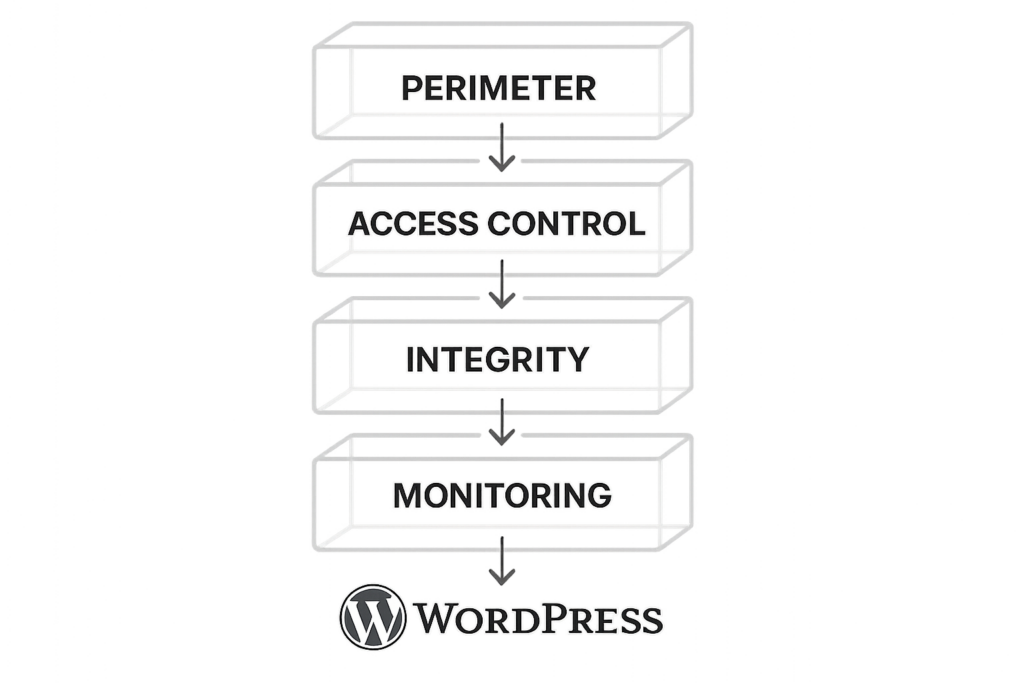
Layered defense stack diagram for WordPress
Plugins often solve a single problem: a firewall, a scanner, or a login limiter. Attackers chain weaknesses—an exploitable plugin, weak credentials, writable upload paths—and a single control rarely covers every stage. You need overlapping controls that detect, prevent, and recover from different attack phases. In short: layered defense wordpress requires controls that overlap, corroborate, and fail gracefully.
Attack stages that break single-plugin approaches
From initial exploit to persistence, attacks follow distinct phases: exploit, payload drop (usually a web shell), privilege escalation, and lateral movement. A signature scanner might catch known payloads but miss a custom web shell; an IP block might slow a botnet but not a compromised admin account. Successful defense requires controls that operate at different telemetry layers (file, process, network, user) and that can be validated independently.
Practical blind spots to watch for
Common gaps include writable theme/plugin folders, permissive file permissions, unmonitored cron jobs, and indistinct telemetry that turns into noise. These blind spots let attackers hide, modify files, and persist despite a “security” plugin being active. Also watch for stale admin users, public-facing debug endpoints, and over-broad plugin capabilities.
What is the layered defense model you should build?
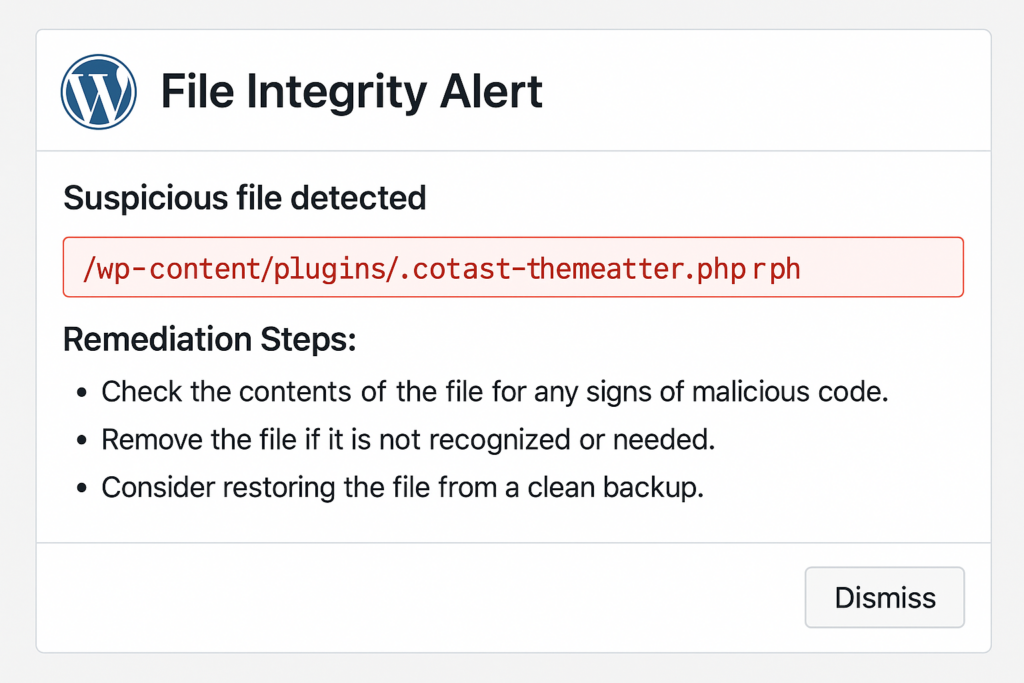
Mockup alert: suspicious PHP file flagged by integrity monitor
Layered defense means combining prevention, detection, containment, and recovery so no single failure leads to full compromise. The implementation should be reproducible (scripts/playbooks), testable (weekly drills), and observable (forwarded logs and diffs).
Prevention
Limit exposure: remove unused code, close upload/execution paths, and lock down administrative interfaces. Apply least privilege to accounts and API keys. Practical steps: remove unused themes/plugins, restrict REST API where not needed, and implement IP allowlists for wp-admin for privileged environments.
Detection
Use file integrity monitoring, anomaly detection, and focused telemetry on critical paths (uploads, plugin/theme changes, cron entries). Tune alerts to reduce false positives so you can act fast. Example: set file-change alerts for wp-config.php and any PHP under /wp-content/uploads, and suppress routine CMS-generated diffs from expected theme updates.
Recovery
Backups are necessary but not sufficient. Maintain tested recovery playbooks and a process to rewind to clean snapshots with credential rotation. Document who executes each step. Keep evidence copies (quarantined files, hashes) separate from restored environments for later forensic review.
How do you validate these controls quickly?
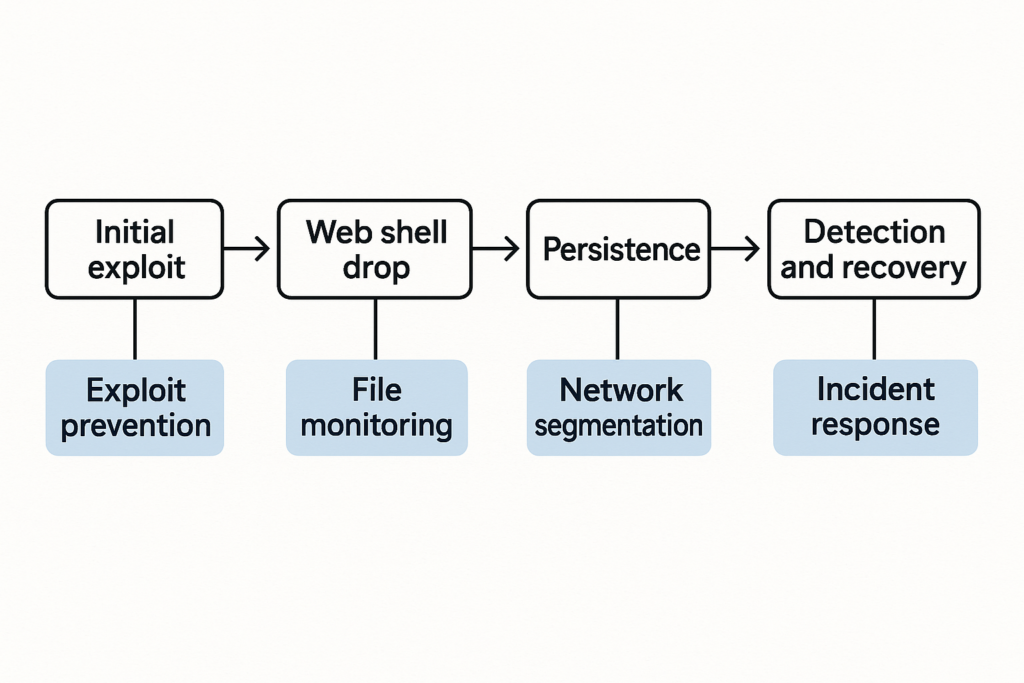
Incident timeline flowchart from exploit to recovery
Run a simulated minor incident drill weekly: modify a non-production PHP file, trigger your integrity alert, and follow the recovery steps. Validation proves that alerts lead to action and that backups restore correctly.
Step-by-step drill (20–40 minutes):
- Choose a staging or non-production environment that mirrors production file ownership and webserver behavior.
- Create a harmless test file, e.g. <?php // test-fim >, under /wp-content/uploads/test/ and attempt to access it via web to confirm execution is blocked (if configured).
- Confirm file-integrity monitor raises an alert and that the alert payload includes file path, timestamp, user context, and a diff.
- Execute the runbook: quarantine the file, rotate any credentials used in the test, restore a snapshot if the simulated test affects state, and document timing and outcomes.
- Review logs forwarded to your remote store and confirm retention and queryability for forensic timelines.
Practical comparison: controls vs. outcomes
| Control | Stops initial exploit? | Stops web shell persistence? | Effort | Practical takeaway |
|---|---|---|---|---|
| Least-privilege admin + session limits | No (post-exploit) | Yes (reduces lateral use) | Low | Immediate ROI: reduces damage of stolen creds |
| File integrity monitoring | No (prevents not) | Yes (detects and flags modified files) | Medium | Essential for early detection of web shells |
| Upload/execution hardening (permissions, MIME checks) | Yes (blocks some payloads) | Partial | Medium | Reduces attack surface where web shells land |
| Telemetry & remote log forwarding | No | Yes (correlates events to detect persistence) | Medium | Enables context-rich investigations |
| Recovery playbook + tested backups | No | Yes (restores known-good state quickly) | Low–Medium | Makes incidents survivable; reduces downtime |
Actionable checklist: a one-hour harden-and-validate runbook
Run this checklist weekly or after any site change. Each item is designed so a single site owner can complete it without a SOC.
- Inventory: list active plugins/themes and remove anything unused. Use WP-CLI if available:
wp plugin list,wp theme list,wp user list. - Permissions: set core files to 644 and directories to 755; lock wp-config.php to 640 where possible. Example commands (adjust user/group for your environment):
find /var/www/site -type f -exec chmod 644 {} ; find /var/www/site -type d -exec chmod 755 {} ; chmod 640 /var/www/site/wp-config.php chown -R www-data:www-data /var/www/site - Account hygiene: revoke stale admins, enable strong passwords (use a password manager), and rotate any exposed API keys. Enforce 2FA for all admin-level users when possible.
- Upload controls: enforce MIME/type checks and block PHP execution in upload directories via server config. For Apache, add an .htaccess with:
<FilesMatch ".php$">
    Order allow,deny
    Deny from all
</FilesMatch>
For nginx, add a location block to deny PHP execution in uploads.
- Enable file integrity monitoring and run a baseline scan; mark the baseline and schedule daily checks. Tune ignores for benign changes (theme updates) while keeping alerts for executable uploads.
- Turn on remote log forwarding to a separate storage location and set alert thresholds for file changes and new executable uploads. Ensure logs include webserver access, PHP errors, and any WP-CLI activity.
- Backup validation: take a snapshot and perform a staged restore to confirm procedure and timing. Record the time-to-restore metric.
- Document the run: who executed items, timestamps, and any follow-ups required. Store documentation in a versioned runbook repository.
Quick examples and realistic checks
Example: If your uploads directory allows PHP, drop a harmless test.php and confirm it cannot execute. If your integrity monitor flags changes, verify the alert includes file diff and an automated quarantine step.
Quarantine example (manual):
# create quarantine and move file
mkdir -p /var/quarantine/wp-shells
mv /var/www/site/wp-content/uploads/suspect.php /var/quarantine/wp-shells/
chmod 400 /var/quarantine/wp-shells/suspect.php
# optionally set immutable flag (careful when using backups)
chattr +i /var/quarantine/wp-shells/suspect.php
Note: chattr is filesystem-specific; remove immutable flag (chattr -i) before restoring if needed.
Incident mini-case study: persistent web shell avoided
A midsize content site found a suspicious PHP file uploaded to /wp-content/uploads/. The site owner followed the checklist: quarantined the file, rotated all admin passwords, restored a nightly snapshot, and reviewed logs forwarded to the separate telemetry store. The integrity monitor had captured file metadata and allowed them to confirm the attacker did not access payment flows. The team documented the event and tightened upload hardening. The containment was complete in under two hours, and full recovery used the tested playbook.
Which telemetry and settings matter most?
File change alerts with diffs, new admin creation events, unexpected PHP uploads, and failed privilege escalation attempts are high-signal. When discussing specific settings and how to apply them in your environment, consult the layered playbook and operator blueprints provided in this site’s resources such as the main layered defense playbook: Why Other Plugins Aren’t Enough: A Battle-Tested Playbook for Layered Defense Against Malware and Web Shells and the operator blueprints for defending high-value flows.
Triage flow for a new integrity alert
- Confirm alert details and file diff. Capture SHA256 and timestamp:
sha256sum suspect.php > suspect.sha256. - Isolate the file (move to quarantine folder with read-only flag).
- Preserve evidence copy offsite before making changes; compress and store with proper metadata.
- Rotate credentials for accounts that touched the file or were active at the time. Revoke API keys that were in scope.
- Restore from the last known-good snapshot if you see footprint beyond the single file.
- Run post-restore validation: confirm integrity monitor shows no new unexpected changes and that access logs show no unusual outbound connections.
When to escalate
Escalate when you see: unknown outbound connections from the site, modifications to .htaccess or wp-config.php, new scheduled tasks you didn’t create, or multiple admin accounts created. Those are strong indicators of persistence attempts beyond a single file. When escalation is necessary, hand over evidence, timeline, and the quarantine artifact to an incident responder.
How do you implement these controls quickly with limited staff?
Prioritize low-effort, high-impact items: inventory removal, permission fixes, and enabling file integrity monitoring. Use automated scans and documented playbooks so the same person can repeat the work reliably. Automate routine tasks (inventory, baseline scans, backup validation) with cron or CI jobs that report to your telemetry store. If you need a step-by-step operator roadmap for hardening admin access and privileged workflows, see the implementation roadmap: Fight Back: Hardening Admin Access and Privileged Workflows — An Implementation Roadmap.
Next steps and further reading
Make this playbook part of your change process: run the checklist after plugin updates, deployments, or staff changes. For deeper workflows on reducing blast radius and recovery playbooks, review Reduce Incident Blast Radius with Monitoring & Recovery Playbooks. For an operator-focused layered defense, see our tactical blueprint at Fight Back: A Tactical Layered Defense Against WordPress Malware and Web Shells and the companion operator blueprints for automated abuse and high-value content protection.
Use the checklist above, validate your controls, and iterate. Layered defenses don’t make you invincible, but they dramatically increase the cost and time for attackers—and give you a practical path to detect, contain, and recover when incidents happen. For ongoing reference, keep your runbooks, evidence retention policy, and incident contact list updated so your small team can act like a SOC when it matters most.